Understanding Login Types in Windows
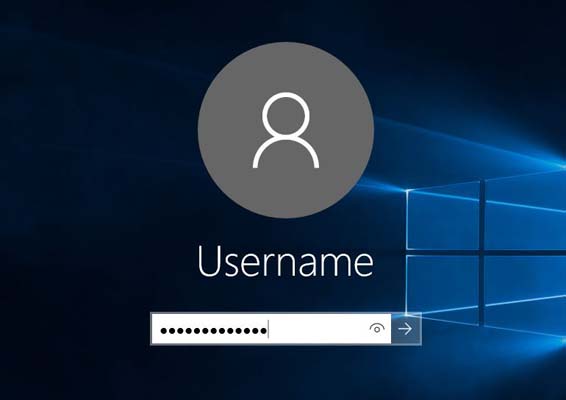
Windows provides several ways for users to sign in to a computer, and the available options can vary depending on the Windows edition, device configuration, organization policies, and connected accounts. Understanding these login types can help users choose an appropriate authentication method and troubleshoot common sign-in problems.
From traditional passwords to PINs, biometric authentication, and organizational accounts, each method works differently. Knowing the distinctions is especially useful when managing Windows devices in homes, schools, and workplaces.
What Is a Windows Login?
A Windows login is the authentication process used to verify a user’s identity before granting access to the operating system. Authentication can involve something the user knows, such as a password or PIN, something the user has, such as a security key, or something the user is, such as a fingerprint or facial characteristics.
After successful authentication, Windows loads the user’s profile, permissions, applications, and personalized settings.
Local Account Login
A local account is an account that exists directly on the Windows computer. It does not require a Microsoft account to function.
Users can typically sign in with a username and password associated with the device. Local accounts are useful when a computer is intended to operate independently and does not need Microsoft’s cloud-connected services.
One limitation is that certain Microsoft services and synchronization features may require a separate Microsoft account.
Microsoft Account Login
A Microsoft account connects the Windows device with Microsoft’s online ecosystem. Users can sign in with credentials associated with services such as Outlook, OneDrive, Microsoft Store, and other Microsoft products.
Depending on the Windows configuration, using a Microsoft account can make it easier to synchronize settings and access cloud-based services across multiple devices.
However, users should protect their Microsoft account carefully because it may provide access to multiple connected services.
PIN-Based Login
Windows also supports sign-in using a PIN. Many users find a PIN more convenient than entering a longer account password each time they unlock their computer.
A Windows Hello PIN is associated with a particular device rather than functioning simply as a replacement password for an online account. This distinction is important because the PIN and the Microsoft account password serve different authentication purposes.
A PIN can therefore provide a convenient method for everyday device access.
Windows Hello
Windows Hello is Microsoft’s collection of authentication technologies designed to provide more convenient sign-in methods.
Depending on hardware availability, Windows Hello can support options such as:
- PIN authentication
- Fingerprint recognition
- Facial recognition
- Compatible security devices
These methods can reduce dependence on traditional passwords while providing additional authentication options.
Fingerprint Login
If a computer has a compatible fingerprint reader, Windows can use fingerprint recognition for authentication.
Fingerprint sign-in is convenient because users do not have to type credentials every time they access the computer. The feature depends on supported hardware and appropriate Windows Hello configuration.
Users should still maintain another authentication method because Windows may require an alternative credential in certain situations, such as after a restart or when authentication needs to be re-established.
Facial Recognition
Some Windows devices support facial recognition through compatible hardware. Windows Hello can use the camera system to recognize the authorized user.
Facial recognition can make signing in particularly convenient on supported laptops and desktops. However, the availability and capabilities of this feature depend heavily on the device’s hardware.
A standard webcam may not provide the same functionality as hardware specifically designed to support Windows Hello facial authentication.
Security Key Login
Security keys provide another authentication option for supported accounts and services. A physical security key can act as an additional factor during authentication.
These devices are especially useful in environments where stronger account protection is important. Because the authentication credential is tied to a physical device, users should keep the security key secure and maintain appropriate recovery methods.
Domain Account Login
Business and organizational computers may use domain-based authentication. A domain account is managed centrally by an organization rather than existing only on an individual computer.
Domain environments allow administrators to manage users, computers, permissions, security policies, and access centrally. This makes them particularly useful for larger organizations with many Windows devices.
Users may therefore see different login behavior on a company-managed computer compared with a personal Windows PC.
Work or School Account
Modern Windows environments can also connect devices to organizational services using work or school accounts. These accounts can provide access to organizational resources and management capabilities.
Depending on the organization’s configuration, a device may be managed through cloud-based identity and device-management systems rather than a traditional local network domain.
This distinction is increasingly important as organizations adopt cloud-based IT infrastructure.
Choosing the Right Login Method
The appropriate Windows login method depends on the device, security requirements, available hardware, and account type.
For everyday personal use, a password or Windows Hello PIN may be sufficient. Devices supporting fingerprint or facial recognition can offer additional convenience. Organizations may require domain or work-account authentication based on their security policies.
Users should also enable appropriate account-recovery and security measures rather than relying on a single authentication method.
Troubleshooting Windows Login Problems
Login issues can occur for many reasons, including forgotten passwords, incorrect PINs, unavailable biometric hardware, account synchronization problems, network restrictions, or organizational policies.
Before making major changes, users should identify which account type they are using. A local account, Microsoft account, and organizational account may have different recovery procedures.
Keeping recovery information current can make it significantly easier to regain access when authentication problems occur.
Final Thoughts
Understanding Windows login types makes it easier to manage authentication and troubleshoot sign-in problems. Local accounts, Microsoft accounts, PINs, Windows Hello, biometric authentication, security keys, and organizational accounts each serve different purposes.
As Windows continues to combine traditional desktop computing with cloud-connected services, knowing how these authentication methods differ can help users make informed decisions about convenience, security, and account management.

About Author
